Friday, 27 September 2013

Forgot Nokia Security Code Unlock it Instantly using USB

Security codes might prove useful in some situation when it really protects data theft but still sometime it can become a nightmare when you actually forget the security code of your device and you get few attempts to bypass it, so sometimes it works and sometime you do not have a luck. Well in that case we have a nice tool for you that works pretty well and will help you unlocking your Nokia Security Code instantly. Well now this process requires a connection through USB so if your device connects through a USB then this method will work and you could easily get rid of that security code on that device. Well we are going to use a small tool called "ANT" it's a tool developed by ANT team, well it's a unknown team behind this tool as I did not find any useful information on them.

Reset Security Code on Nokia Device's

So now lets just follow below simple steps and you will be good to unlock your Nokia device instantly. Note Make sure that your Nokia PC suite is entirely closed during this process for 100% success.
  1. Download ANT Unlocking Tool.
  2. Now after downloading this tool just extract the tool.
  3. Now after extracting the tool you will find simple.exe file, double click on it.
  4. Now just connect your device to your PC using USB Connection.
  5. If you have Nokia PC suite installed, make sure its closed.
  6. Now on the ANT Main Tab choose Normal from the dropdown menu and click on Get option to get your device IMEI Number.
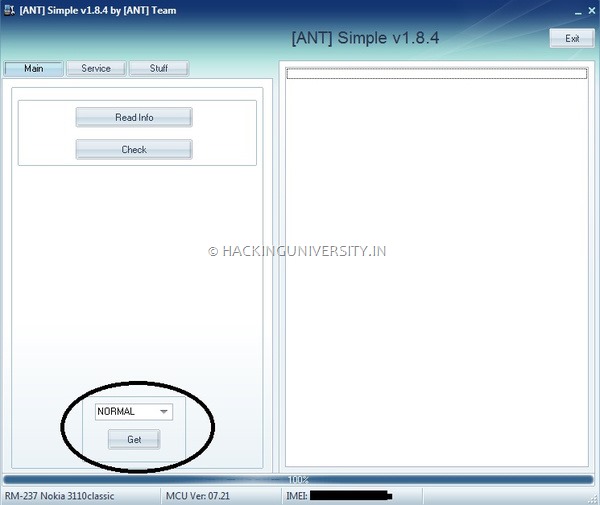
    ANT-IMEI-Number
  7. Now it will just display your device IMEI Number in the below status bar, so now you need to shift to the Service Tab.
  8. Now in the Service Tab you need to on Get once again under the User Code option, so this will just start scanning for your user code and then it will display the code on the right hand side box like in the below image.
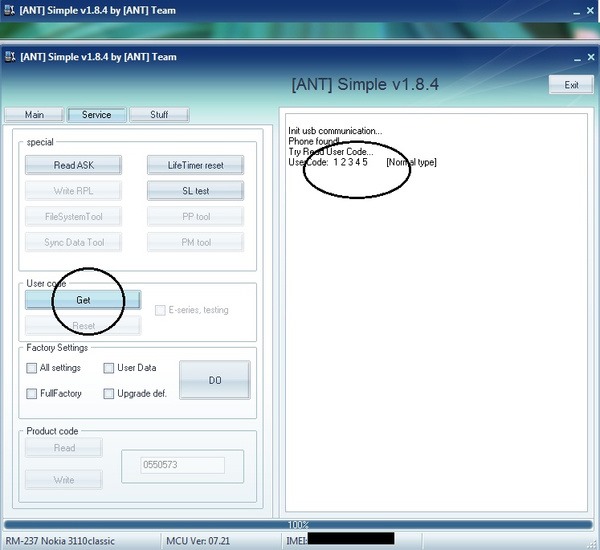
    ANT-Unlocking-Page
So that's it now your security code is visible and you can easily enter that to unlock or reset your device, well this tool even provides you all other options like Resetting your device to factory settings, and many other tools to upgrade your device.
So possibly this will end up helping in you in difficult times when you are not bale to unlock your device using your forgotten security code. So have fun and do share this post with all your friends if you found this tutorial little helpful :)


How To Convert Xp Sp2 To Xp3 Without Using Software

Steps To Convert Xp Sp2 To Xp3 Without Using Software

So Simple

Go To Start>Run>Type "Regedit"

Then Watch Below Screen Shots

I Personaly Tried It Works Well


Remember Me in Your Prayers

And Keep Visiting


Saturday, 31 August 2013

SECRET CODES FOR ANDROID

1. Complete Information about your Phone:
*#*#4636#*#*
This code can be used to get some interesting information about your phone and battery. It shows following 4 menus on screen:

Phone information
Battery information
Battery history
Usage statistics
2. Factory data reset
*#*#7780#*#*
This code can be used for a factory data reset. It'll remove following things:
Google account settings stored in your phone
System and application data and settings
Downloaded applications
It'll NOT remove:Current system software and bundled application
SD card files e.g. photos, music files, etc.

Note: Once you give this code, you get a prompt screen asking you to click on "Reset phone" button. So you get a chance to cancel your operation.
3. Format Android Phone
*2767*3855#Think before you give this code. This code is used for factory format. It'll remove all files and settings including the internal memory storage. It'll also reinstall the phone firmware.
Note: Once you give this code, there is no way to cancel the operation unless you remove the battery from the phone. So think twice before giving this code.
4. Phone Camera Update
*#*#34971539#*#*
This code is used to get information about phone camera. It shows following 4 menus:
Update camera firmware in image (Don't try this option)
Update camera firmware in SD card
Get camera firmware version
Get firmware update count
WARNING: Never use the first option otherwise your phone camera will stop working and you'll need to take your phone to service centre to reinstall camera firmware.
5. End Call/Power
*#*#7594#*#*
This one is my favourite one. This code can be used to change the "End Call /Power" button action in your phone. Be default, if you long press the button, it shows a screen asking you to select any option from Silent mode, AirPlane mode and Power off.
You can change this action using this code. You can enable direct power off on this button so you don't need to waste your time in selecting the option.
6. File Copy for Creating Backup
*#*#273283*255*663282*#*#*
This code opens a File copy screen where you can backup your media files e.g. Images, Sound, Video and Voice memo.
7. Service Mode
*#*#197328640#*#*
This code can be used to enter into Service mode. You can run various tests and change settings in the service mode.
8. WLAN, GPS and Bluetooth Test Codes:
*#*#232339#*#* OR *#*#526#*#* OR *#*#528#*#* - WLAN test (Use
"Menu" button to start various tests)
*#*#232338#*#* - Shows WiFi MAC address
*#*#1472365#*#* - GPS test
*#*#1575#*#* - Another GPS test
*#*#232331#*#* - Bluetooth test
*#*#232337#*# - Shows Bluetooth device address
9. Codes to get Firmware version information:
*#*#4986*2650468#*#* - PDA, Phone, H/W, RFCallDate
*#*#1234#*#* - PDA and Phone
*#*#1111#*#* - FTA SW Version
*#*#2222#*#* - FTA HW Version
*#*#44336#*#* - PDA, Phone, CSC, Build Time, Changelist number
10. Codes to launch various Factory Tests:
*#*#0283#*#* - Packet Loopback
*#*#0*#*#* - LCD test
*#*#0673#*#* OR *#*#0289#*#* - Melody test
*#*#0842#*#* - Device test (Vibration test and BackLight test)
*#*#2663#*#* - Touch screen version
*#*#2664#*#* - Touch screen test
*#*#0588#*#* - Proximity sensor test
*#*#3264#*#* - RAM version

Try these codes on Ur Own Risk.


How to Get WhatsApp Subscription Free for 10 Years

f you love instant messaging from your iPhone or any other capable device that WhatsApp tops the list with every possible activity you can attempt on it. You can send messages, emoticons, videos, audio clips and much more. Well we have taken it to a new level and provided you with a trick to install it on your PC and  get much more easy access.
Well but the thing is that WhatsApp costs free for 1 year subscription in iPhone but it is available for free in Android device. But for the second year you need to pay a small fee of $0.99 in iOS Devices. Well this cost is obviously low just Rs.55 but still if you are in search of a free way to get subscription for a long time than some online guy has found a bug in WhatsApp system with which you can get 10 years of free subscription.

 
  1. First you just have to delete WhatsApp from your personal device.
  2. Now you will need an iOS device (iPhone, iPad, iPod) that has not installed WhatsApp and can be any version.
  3. Now just install WhatsApp on that device and verify it with your phone number on which you will receive that confirmation message.
  4. Now just check if WhatsApp is working fine, and if you are lucky you will receive 10 years of free subscription from the bug found.
  5. Now you just need to remove WhatsApp from that iPhone and install WhatsApp on any other device, can be any Android, Blackberry, Windows based.
  6. Now you will get that 10 years free subscription on that device too.
Note This is bug in their system providing you with 10 years of free usage, this can end up anytime and may or may not work. So try it out and have fun.


Convert Image To Text


You don’t need to install it, its an independent executable file.

The user interface is easily made and with no such hard turns. Click on Open image to load the image you want to convert to text. But make sure that  the image is proper JPEG image.


Once the image is loaded, it will be displayed in the upper horizontal row. Below the right side of image, you can see the resolution and character numbers settings. This will determine the length ofthe characters in rows and columns. The lowest value 2 gives the highest possible resolution for the image. While the character’s size and resolution goes decreasing for the increasing value of 2+.


Once you are done with the image settings, click on Convert button to convert it to text.
The image will be converted to characters and you can easily copy or save it from Copy Text or Save Text button.


Paste it in any text editor, you’ll get the final result similar to the one below:


Enjoy it ...


How to Surf Web and Browse Images in 3D using Chrome

If you are aware there is a buzz going on about that 3D tool available in firefox that simply converts any particular website into 3D object with images and CSS stuff popping out in real dimensions. Well chrome is also not left out as an developer names "Ivan Kutil" has created an 3D web browsing extension for chrome that simply converts any website and image into 3D and can be viewed by you using any 3D glasses. 3Dnator! add another status bar and context menu option for converting any image on the web into 3D image.

gogole-images-3d 

So you can see the glasses icon in top left hand side corner that simply converts any website will lots of images into 3D when activated. There is still another option available that the right click context menu option that you can use on any image present on the web. You just right click on that image and that click on 3Dnator! option like in the image below.

3dnator-extension
So obviously it’s a fun app to try out but you will need 3D glasses to view them in real 3D else they will look really blurry, well just give this extension a try you can install it using the below link.


Watch your Desktop Screen Inside VLC Media Player Trick

vlc-media-player

Now I have posted many tricks related to VLC Media Player like watching television on VLC Media Player and few other hidden tricks related to it but today I have found a simple but interesting trick for it with which you can display your desktop screen right inside VLC Media Player. Now its not a useful trick but its just to amaze your friends. So if you ever use your friends PC just do this trick and he will be amazed what the hell is going on.

So now its like a inbuilt feature of VLC Media Player, so you can easily follow below steps and get this tricks working.
  1. Open VLC Media Player.
  2. Now press Ctrl + N
  3. Now type Screen://
  4. Press on Play Button.
  5. Enjoy watching your screen displayed in it.
  6. So now you will see screen inside screen, you can press pause to stop that too.